Most people plug in the TV, connect Wi‑Fi and streaming apps, then never look again at those mysterious sockets at the back. One of them, the humble USB port, can radically change the way you store programmes, enjoy films, power gadgets and even work or play games from your sofa.
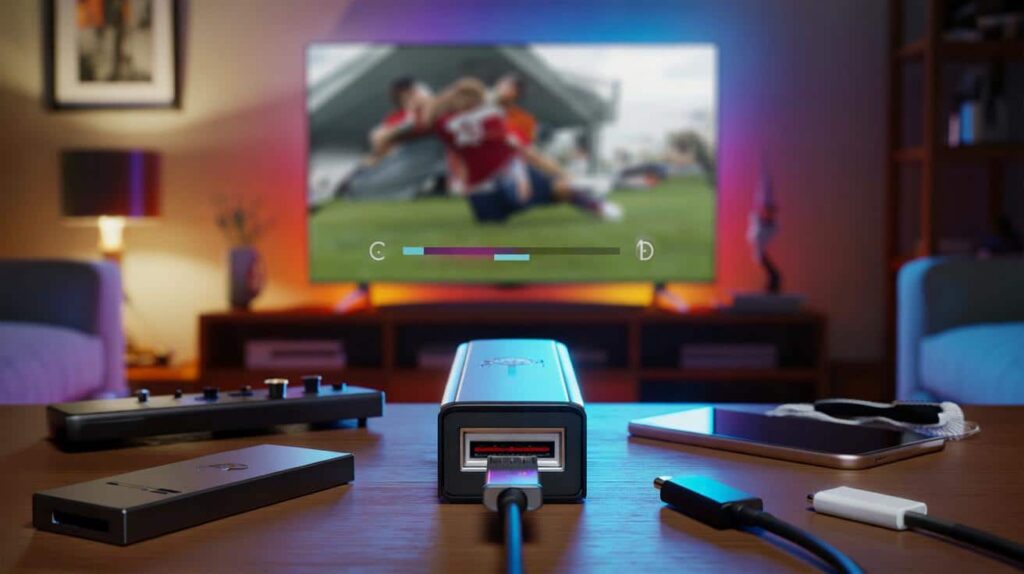
The USB port that turns your TV into more than a TV
On modern televisions, the USB port usually lives on the rear panel or along one side. It looks exactly like the USB sockets on a laptop, which is no coincidence: it can handle very similar tasks.
Your TV’s USB port is not just a “photo viewer”; used properly, it becomes storage, a recorder, a power source and a basic computer hub.

That means you can boost storage, record live broadcasts, watch videos from a USB stick, plug in a keyboard or gamepad, and even top up your phone battery — all through that single small connector.
More storage and recording without buying a new TV
Expanding your TV’s memory with a simple drive
Streaming apps keep getting bigger. Some TVs quickly run out of internal space, then start complaining when you install yet another platform or game. A cheap USB stick or external hard drive can help.
On many smart TVs, once you plug in a USB drive, the system offers to format it for “device storage” or “app storage”. After that, part of your apps and data can move to that external device.
- Use a USB stick (32–128 GB) for apps and light recording.
- Choose an external hard drive (500 GB or more) for heavy recording and a big film library.
- Prefer USB 3.0 drives if your TV supports them for faster transfers.
Some brands will even mark that drive as “dedicated” to the TV, improving security but limiting its use on other devices. Always read the on‑screen message: formatting usually erases everything already stored on the drive.
Turning the USB drive into a personal recorder
Many European and UK models support “PVR” or “USB recording”. Once activated, the TV records broadcast channels directly to the USB drive. You can pause live TV, rewind a scene or schedule a programme while you are out.
With a compatible TV and a decent USB drive, that little port becomes your own mini DVR, without a separate set‑top box.
There are a few limits worth knowing:
- Recordings are usually locked to that specific TV, for copyright reasons.
- Some channels block or restrict recording of certain content.
- The TV may refuse very slow or very small USB sticks for recording.
Despite these restrictions, for many households it is an affordable way to time‑shift shows without paying for extra hardware or subscription services.
Playing your own films, music and holiday videos
The USB port also acts as a basic media player. Copy files from your computer onto a USB stick, plug it into the TV, and use the “Media”, “USB” or “Source” menu to open them.
Most recent sets understand common video formats such as MP4, MKV and AVI, along with MP3 or AAC audio and JPEG photos. Support varies by brand, but simple home videos and downloaded content (from legal sources) usually work straight away.
| File type | Typical use | Chance of compatibility |
|---|---|---|
| MP4 (H.264) | Films, series, clips | Very high |
| MKV | High‑quality films, TV episodes | High on newer TVs |
| AVI | Older videos | Medium |
| MP3 | Music | Very high |
| JPEG | Photos | Very high |
For families, this turns the living room TV into a big screen for birthdays, weddings and travel footage, without fiddling with HDMI cables or complex media servers.
Using your TV like a lightweight computer
Keyboard and mouse for easier typing
Typing passwords, searching YouTube or entering email addresses with a remote control is slow and frustrating. Many TVs accept USB keyboards and, sometimes, mice.
Plug in a simple USB keyboard and your smart TV starts to feel much more like a laptop than a clumsy streaming box.
Once connected, you can:

- Type searches quickly in streaming apps.
- Fill out login forms without tapping arrows for minutes.
- Use arrow keys and shortcuts on some menu systems.
Not every TV supports a mouse cursor, but when it does, browsing built‑in web apps or settings becomes far less tedious.
Game controllers and casual gaming
Mid‑range and high‑end TVs increasingly include app stores with simple games. Plugging a USB gamepad into the TV’s USB port can turn these into a casual console.
Expect mobile‑style titles, retro games or cloud gaming apps rather than blockbuster console exclusives. Yet for children, party games or a short football match, it is more than enough.
Latency and performance depend on the TV’s processor, so performance hunters should manage expectations. But as an add‑on to a device you already own, it offers free extra entertainment.
Screen mirroring from your phone with a cable
While many users rely on wireless casting, a wired connection via USB can provide a more stable experience, especially in offices or meeting rooms.
With an adapter — usually USB‑C to USB‑A or USB‑C to HDMI, depending on the TV — some smartphones can mirror their screen or send video output directly. The TV then shows your slides, photos or apps to everyone in the room.
For quick presentations, a phone plus a USB‑C adapter and the TV’s USB or HDMI port can replace a bulky laptop.
This is handy for showing documents during a meeting, playing a demo to colleagues or sharing holiday clips with relatives visiting for the weekend.
Hidden bonus: a spare charger when sockets are full
This may be the most overlooked feature of all: the USB port on many TVs can supply power. It usually delivers 5 volts at 0.5 to 1 amp, which is enough to charge a smartphone or small gadget slowly.
- When every wall socket is already in use.
- If you misplace your original phone charger but keep the USB cable.
- To charge a tablet quietly on the TV stand while you watch a film.
- In a rented flat or hotel room with limited plugs.
There are a few points to keep in mind. Charging is often slower than using a dedicated wall adapter. On some sets, the USB power cuts off when the TV goes into standby. And high‑demand devices such as power‑hungry tablets might display a “charging slowly” notice.
Practical tips and small risks to watch for
As with any connector, the USB port deserves a bit of care. Hot‑plugging drives during recording can corrupt files. Using very old, low‑quality sticks can cause stuttering when playing back video. And USB ports are not designed to power large accessories like external DVD drives or mini‑fridges.
Security also matters. Plugging in a random USB stick from work or a hotel conference could, in theory, expose the TV to malware, especially on Android‑based models. Treat your TV like a basic computer: use trusted drives and devices.
Jargon you may see in your TV menus
Manufacturers love acronyms. A few terms linked to the USB port often appear in on‑screen settings:
- PVR / USB HDD recording – personal video recorder features that save broadcasts to a USB hard drive.
- Time‑shift – pausing or rewinding live television while the programme records temporarily to USB storage.
- USB power (5V) – the electrical output the port offers for charging devices.
- Mass storage – a mode where the TV treats a USB device simply as a file container, not as “app storage”.
Knowing these labels helps you find the right menu quickly, instead of hunting through every setting trying to guess what does what.
Used thoughtfully, that unassuming little port at the back of your TV can shift your screen from “just another panel for streaming” into a flexible hub for video, games, work and everyday charging — all without buying a new set or an expensive extra box.